
How to Delete a Recent Action
Administrator users may occasionally need to remove activity that was logged against the wrong participant record. For example, if a Progress Note was mistakenly written on the incorrect participant profile and then deleted, the note content itself is removed—but a record of that action may still appear in Recent Actions, Timeline, or Handover views.
This guide explains how administrators can hard delete a Recent Action so it is no longer visible in the user interface.
Important: While the action is removed from the front-end interface, a secure audit trail is retained in the back end of the system for governance and compliance purposes.
Where Recent Actions Appear
Recent Actions may appear in:
Handover (Dashboard)
Timeline (Participant Profile)
Recent Actions (Dashboard)
Deleting the underlying record alone may not remove the associated log—this is why a hard delete is sometimes required.
How to Delete a Recent Action
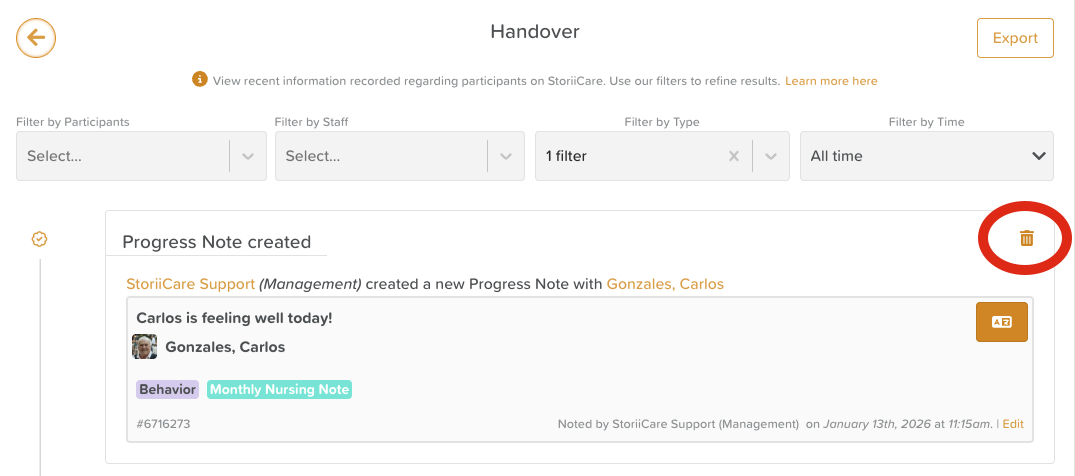
From the StoriiCare Dashboard, open the Handover feature.
Use the available filters to locate the specific Recent Action you want to remove.
Filters may include participant, date, feature type, or staff member.
Once you locate the correct entry, click the trash can icon on the right-hand side.
Confirm your intention to delete the Recent Action.
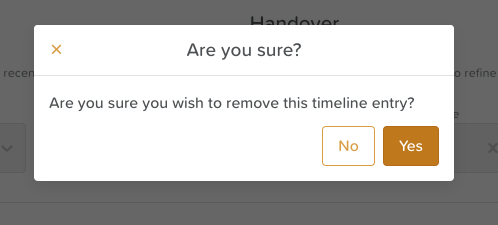
Once confirmed, the action will be permanently removed from the user interface.
Important Considerations
This action cannot be undone from the front end
Use this feature only when data has been logged to the incorrect record
The deletion does not remove the system’s internal audit trail
Administrators should ensure deletions are appropriate and justified
Need More Help?
If you need further assistance, you can reach out to our support team by emailing support@storii.com. Our support team is ready to help you with any questions or issues you may have.